Products can be added to cart by a sales rep, or a buyer. Once You're ready to check out, click on the "cart" icon in the upper right hand corner of the portal. Below is a guide on the working order:
There are three NAVIGATION TABS in your working order:
1. ORDER DETAILS: Order number, retailer & buyer, billing & shipping addresses, notes, etc.
2. PRODUCTS: Products, quantities, and ship dates.
3. TERMS & CONDITIONS
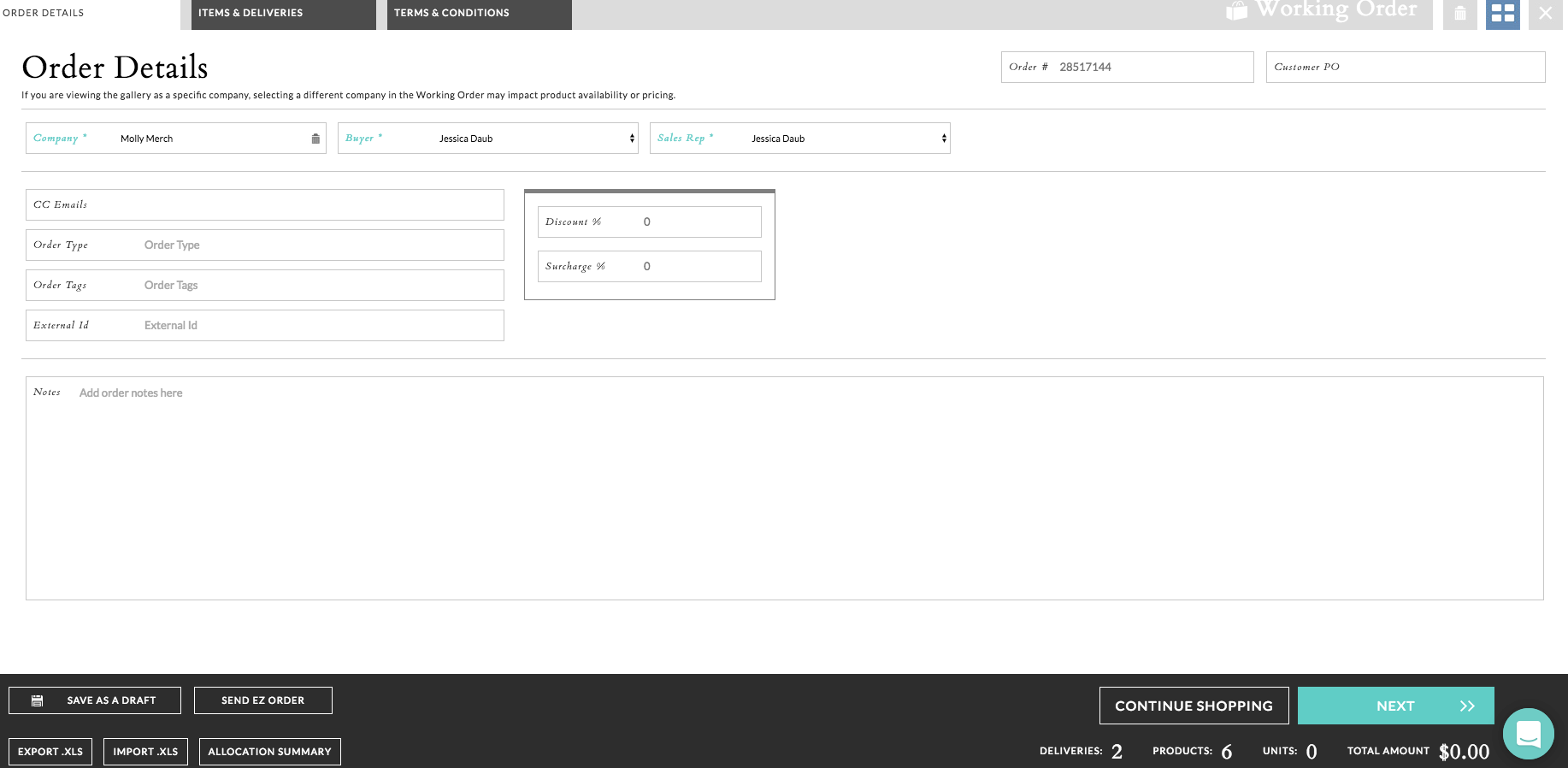
1. ORDER DETAILS tab to fill in customer information and other key fields.
- Order # - This will be automatically generated by NuORDER and will count up sequentially with each order, but can be edited to whatever you'd like from here.
- Customer PO - This field is for Brands to include their own POs if they wish. We can make this a required field by request.
- Company - Select your desired retailer here. Keep in mind that if you are viewing the gallery as a specific company, selecting a different company in the Working Order may impact product availability or pricing.
- Buyer - Select from the companies available Buyers here.
- Sales Rep - Use this field to assign the appropriate Sales Rep to the order.
- Order Tags - If your Brand is using Order Tags they can be applied here. (i.e. LA Market, Dallas Market)
- Order Types- If your Brand is using Order Types they can be applied here. (i.e. Prebook, Immediate)
- CC Emails - Enter in any recipients you'd like to be copied on the confirmation email.
- Discount % - Use this to apply a discount to all products in the order.
- Surcharge - Use this to apply a surcharge to all products in the order.
- Notes - Enter any order notes here. Notes for specific products can be added in the Product & Details Tab.
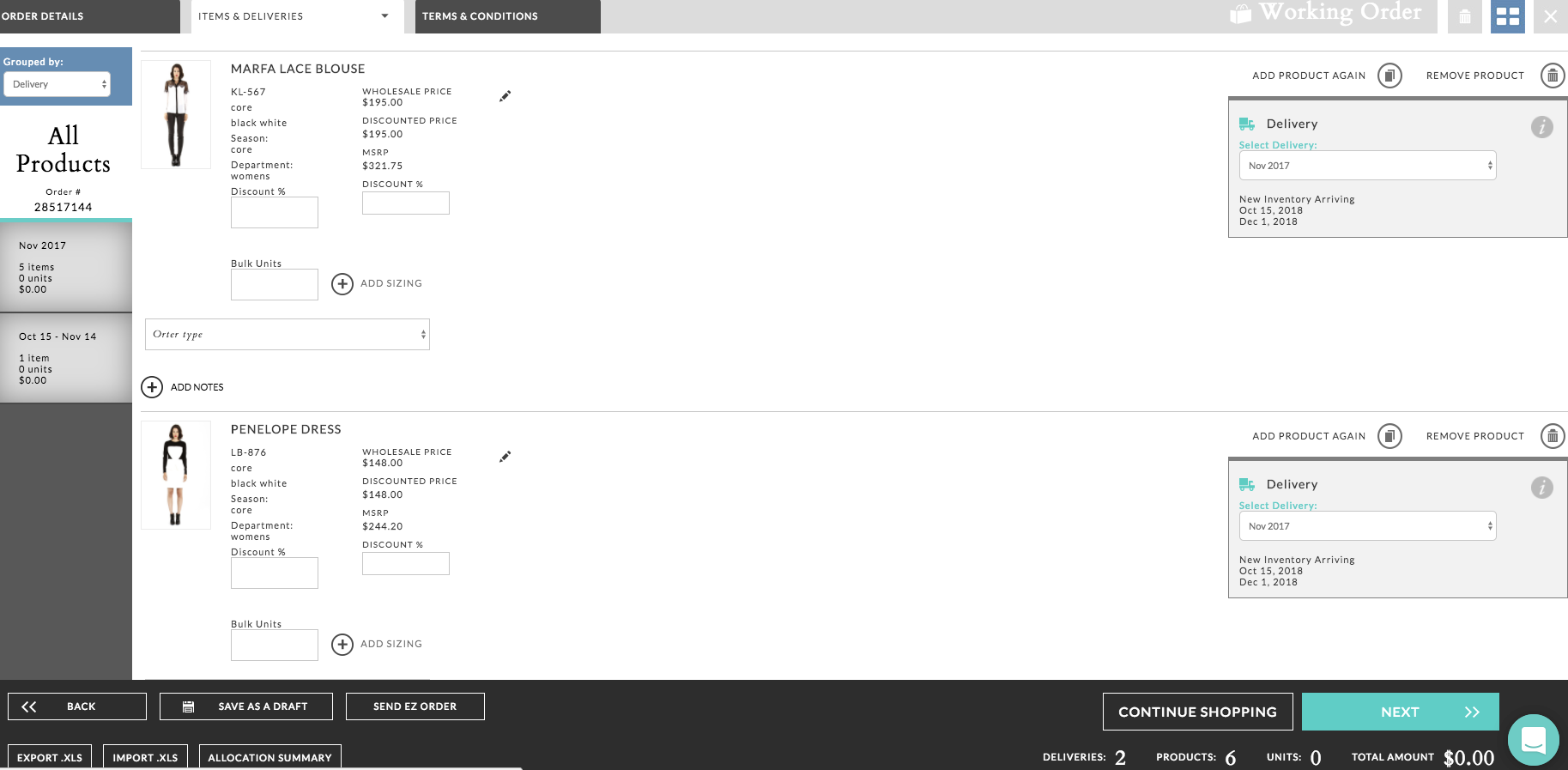
2. PRODUCTS tab to adjust quantities, apply discounts, add order notes and add / remove styles. When adjusting the order you can group the order by delivery, season or department.
- Remove Product - Click the Trashcan icon to delete this item form the Working Order.
- Add Product Again - Click here to add the same product twice.
- All Products - All the deliveries in the order will be listed on the left-hand side sequentially by date
- Discount % - Enter in an item discount here. You can apply a Discount to the entire order from the Order Details Tab.
- Size Grid - Click to open up a grid to size your order.
- Sizes - This is where you'll add quantities to your product by entering in values for the available sizes.
- Add Notes - Click to add notes to a product.
- Grouped by - Click to select how you want to group products. For example, by season - your products will group by the season instead of delivery.
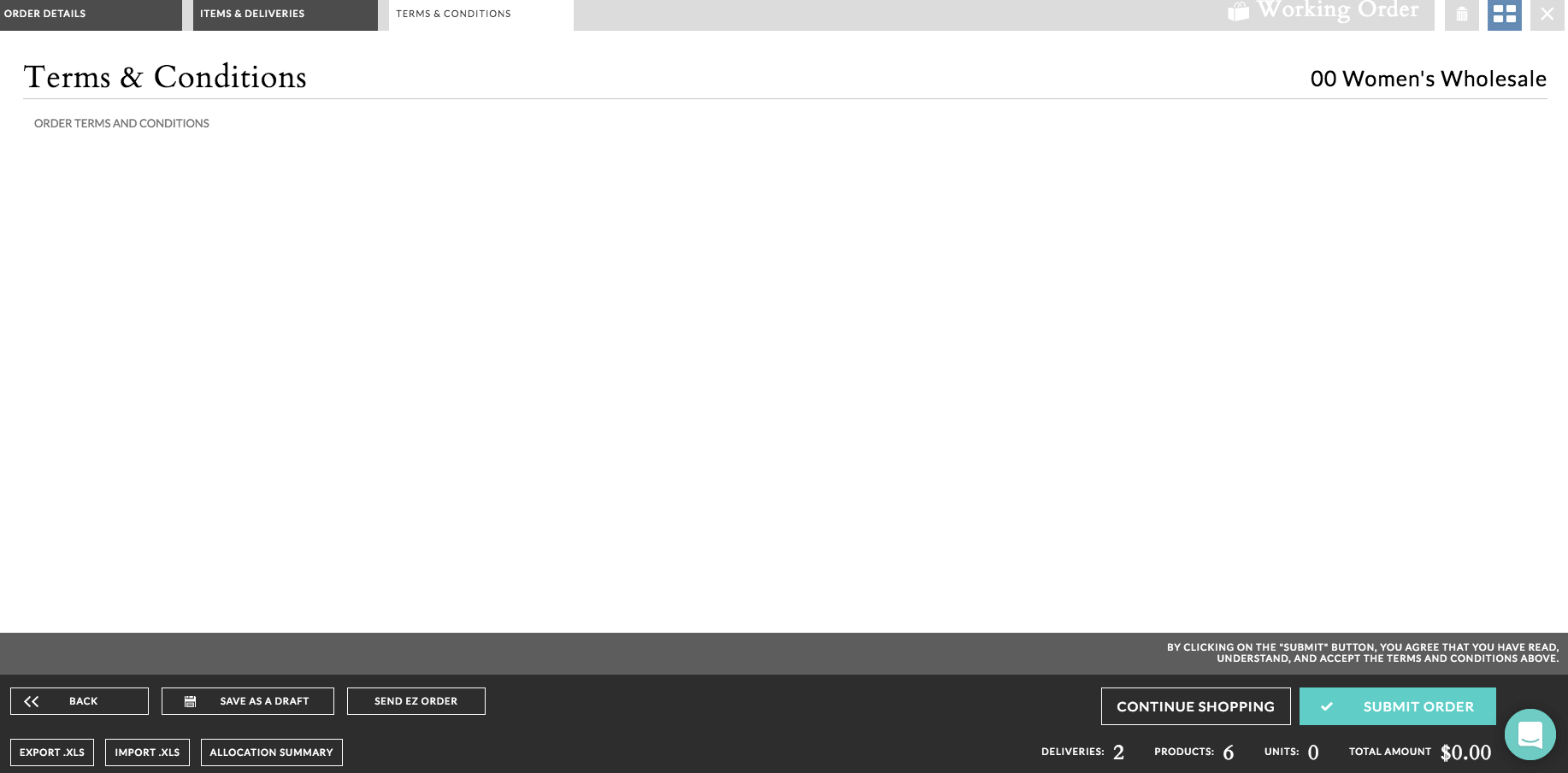
3. TERMS & CONDITIONS: By clicking Submit the brand user and buyer have read and understand the terms.
Comments
0 comments
Please sign in to leave a comment.