All Nordstrom buying teams will send their selections to JWN so that item data is sent to PIE for Item Set Up, and to instantly create an IIF.
To send your selection to JWN:
1. Filter your assortment to the relevant items (e.g. Month, Supplier, etc)
Note: Make sure you have filled in any fields that will be required in AB.
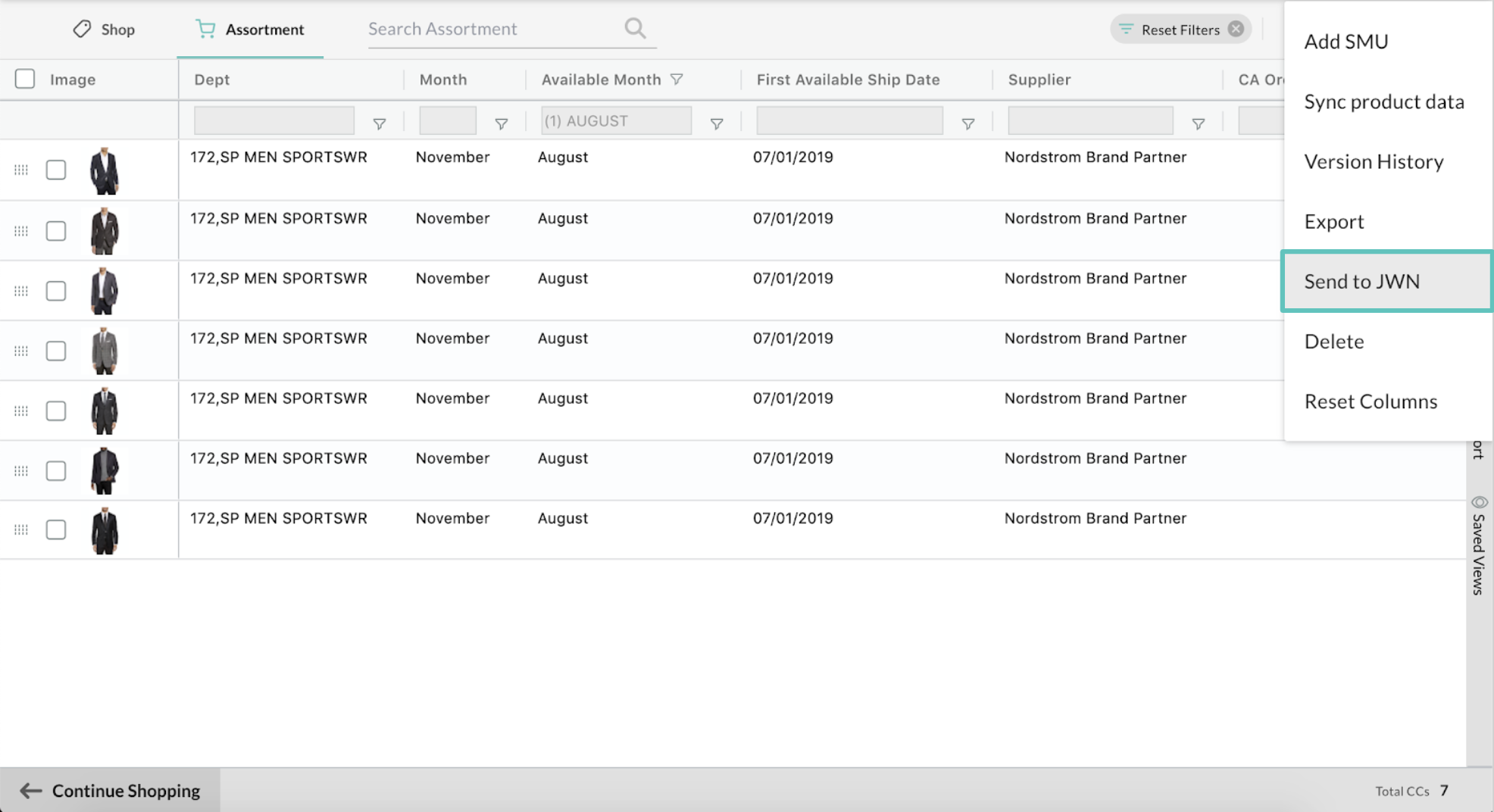
2. In your assortment actions menu, click Send to JWN.
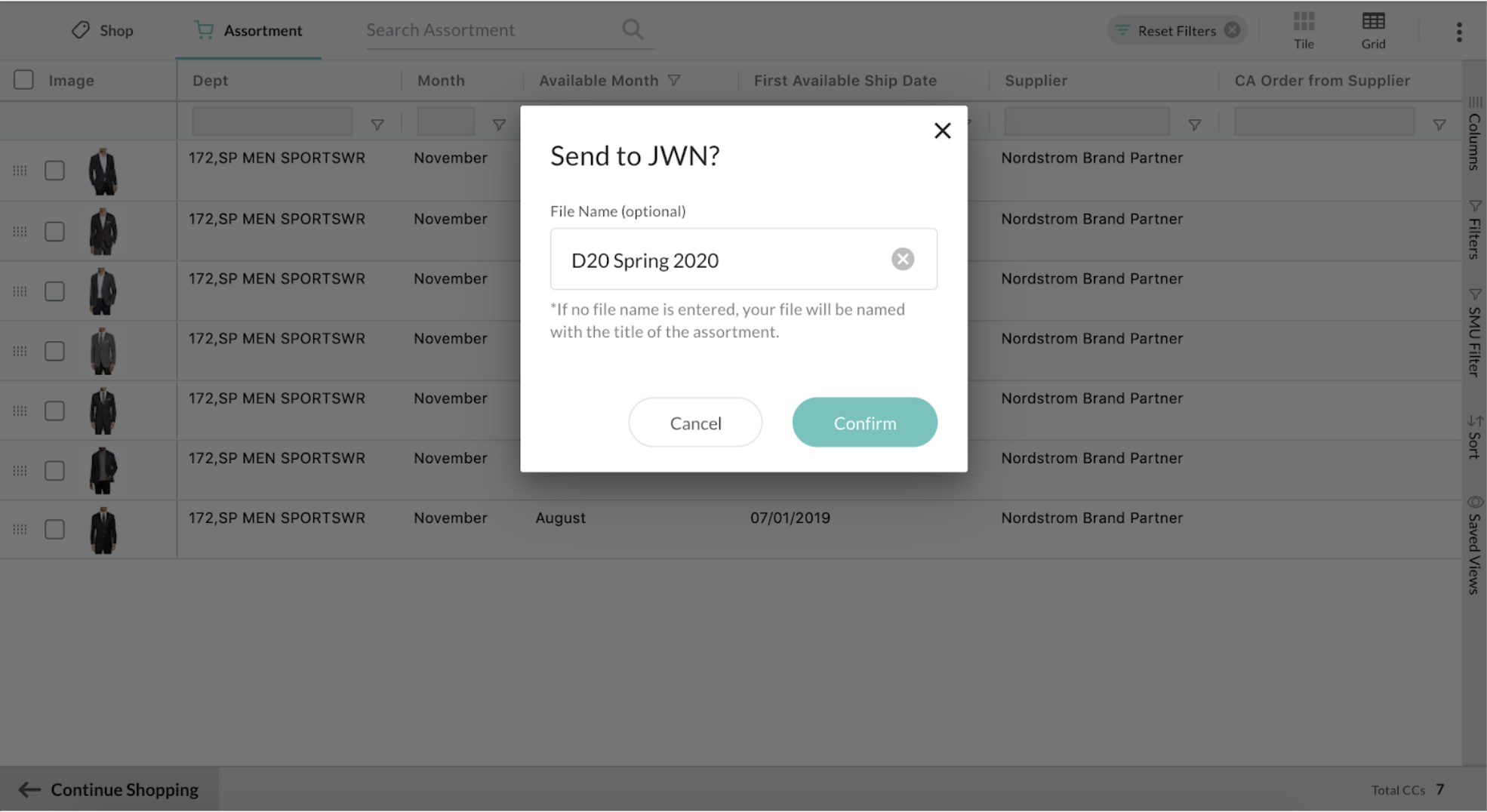
3. Enter a file name (Optional)
This will be the name of the file generated on the JWN shared drive. If left blank, the file will be named with the assortment name.
4. You will see an "Assortment Sent" message at the bottom of your window confirming that your selection has been sent to PIE.

5. PIE will generate your XLS file to the JWN shared drive, where you can retrieve it.
Troubleshooting:
After sending your file, if you see an error message rather than the "Assortment sent" confirmation...
- Wait a few minutes and try your "Send to JWN" action again.
- If the issue persists, contact Support.
Comments
0 comments
Please sign in to leave a comment.