The order the columns are set will determine the view of the assortment. You're able to save your own views, and share them with the users in the assortment. Changes will autosave.
- Dragging Headers from the Columns bar
-
Autosize one or all of your columns
1. Dragging Headers from the Columns bar
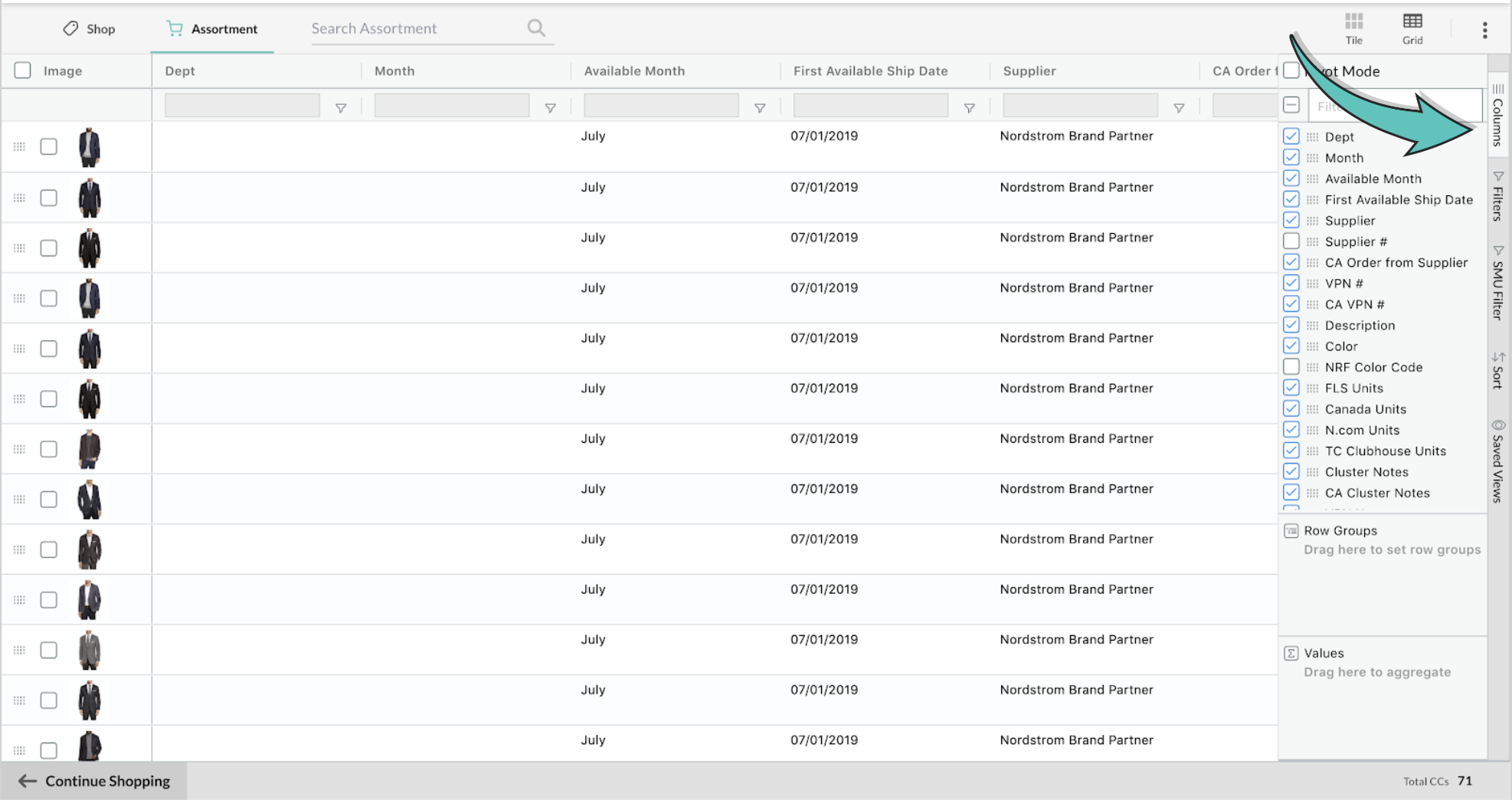
Step 1: Click on "Columns" panel to the right of the Grid view. This will expand the list of columns available in the Grid view.
Step 2: Click on the dotted square in front of the column name to drag and drop the field to the Grid view in the order that works best for your area's workflow.
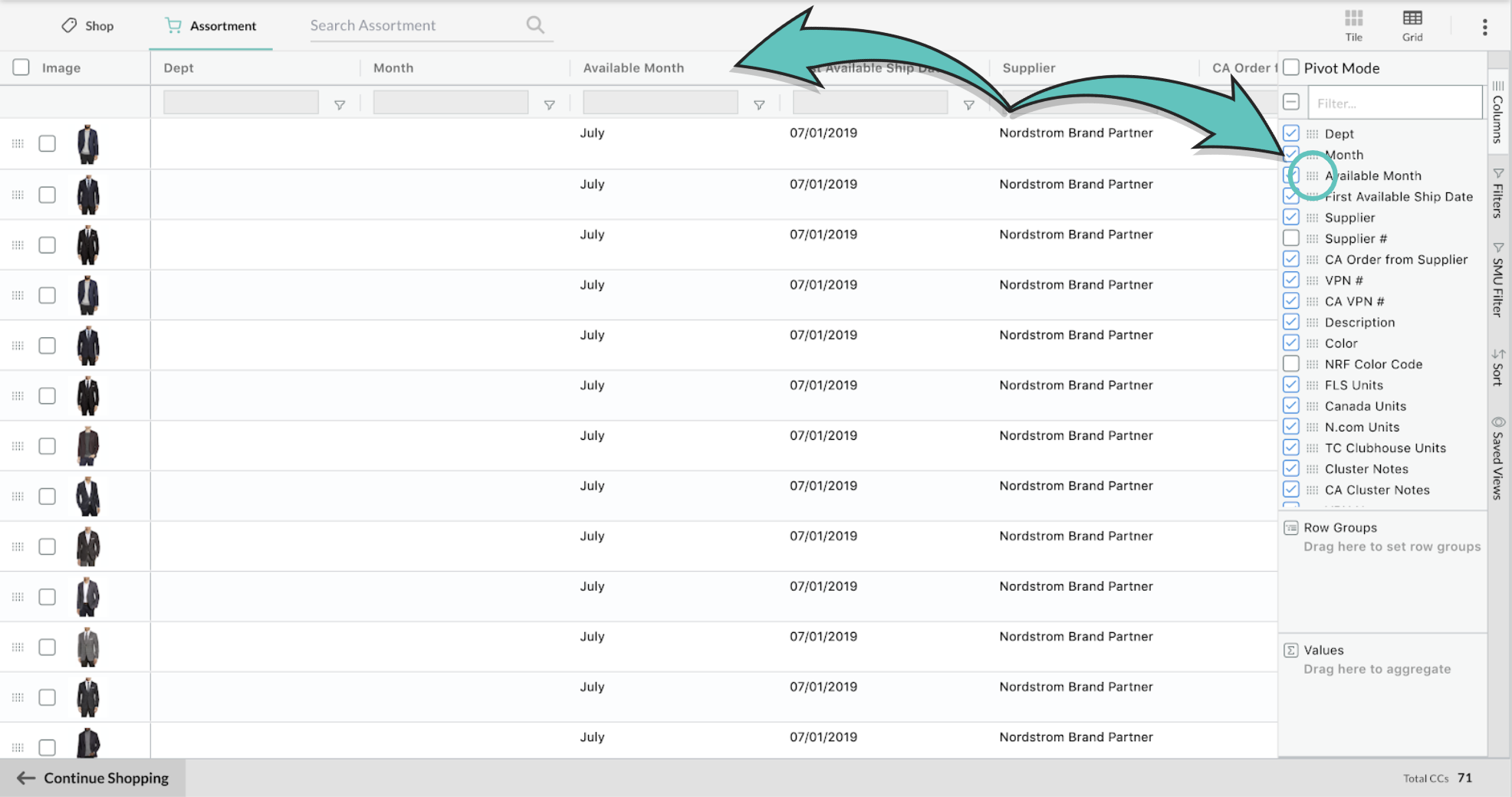
You can also rearrange the columns by dragging and dropping them.
2. Autosize one or all of your columns
-
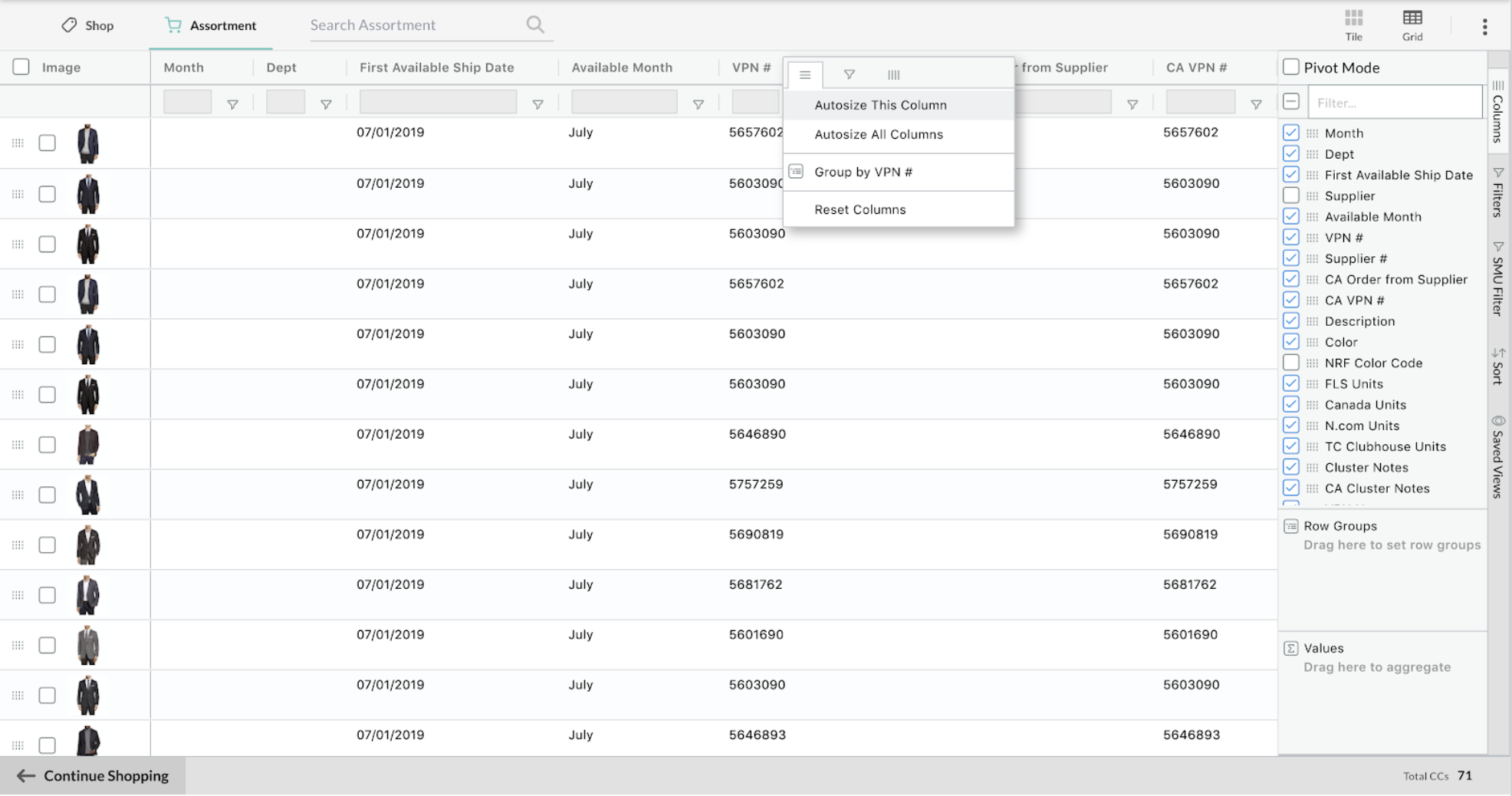
From the menu, select "autosize this column" or "autosize all columns." This allows more to be seen in your view.
Comments
0 comments
Please sign in to leave a comment.