How to Add a Product Image: Web
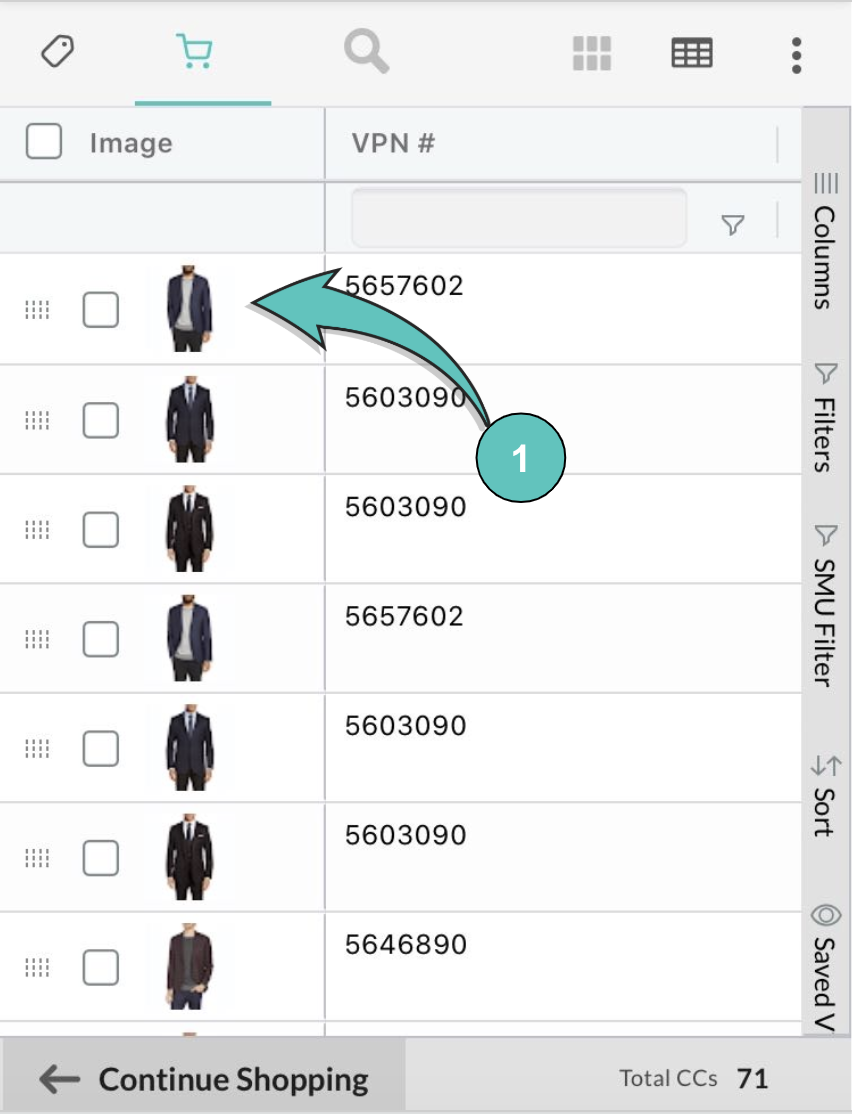
Step 1: Select the product image from the line item

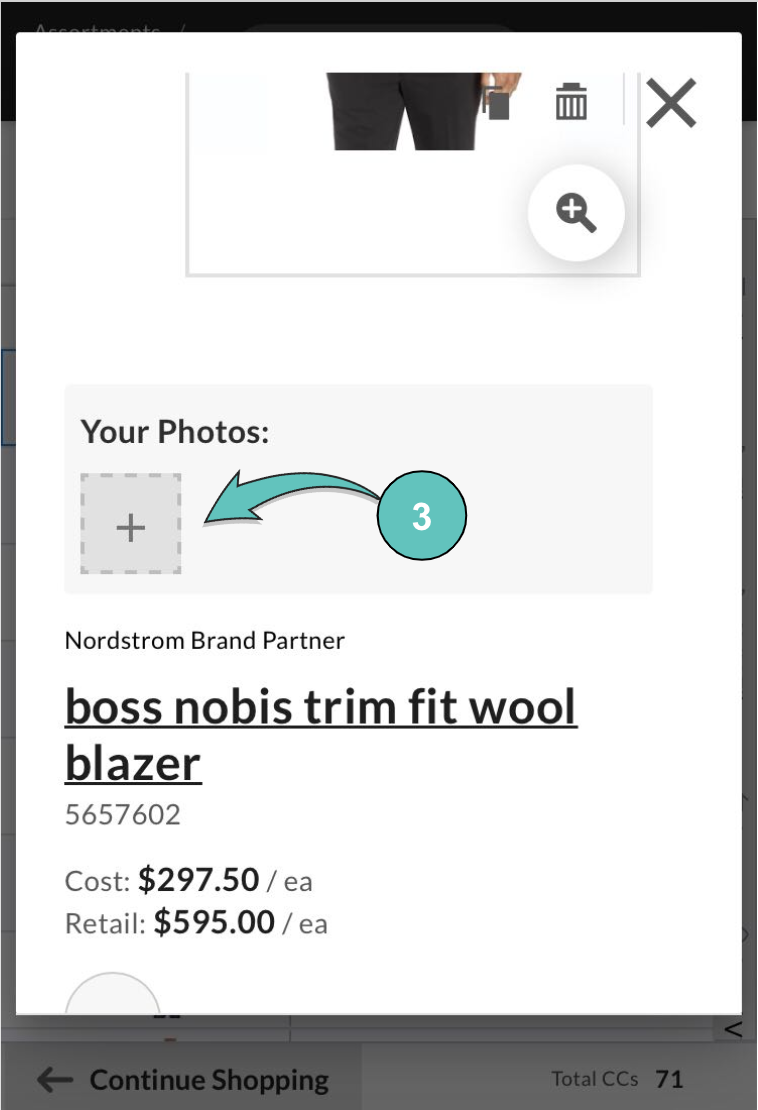
Step 2: Select the empty "Your Images" box with a "+" sign. This will prompt you to upload an image from your desktop.
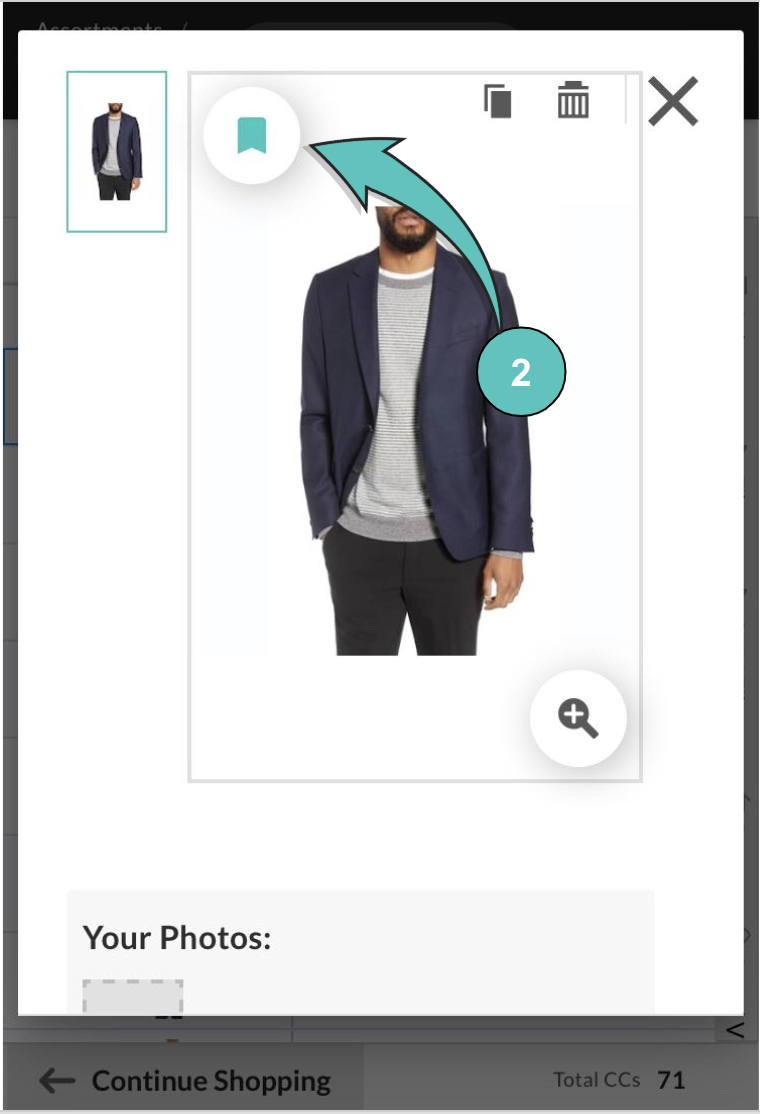
Step 3: If you'd like to set your new image as the primary image, select the image, and click the bookmark tab. This will be the image that appears on your IIF download.

How to Upload Product Images & Edit Data: Mobile
Go to Safari browser on your mobile device (iPhone or iPad). Search for app.next.nuorder.com and login.
Step 1: Go into your assortment and select the image of the item you'd like to edit.
Step 2: If there are multiple images, you can set a primary image by selecting the image, and selecting the bookmark icon.
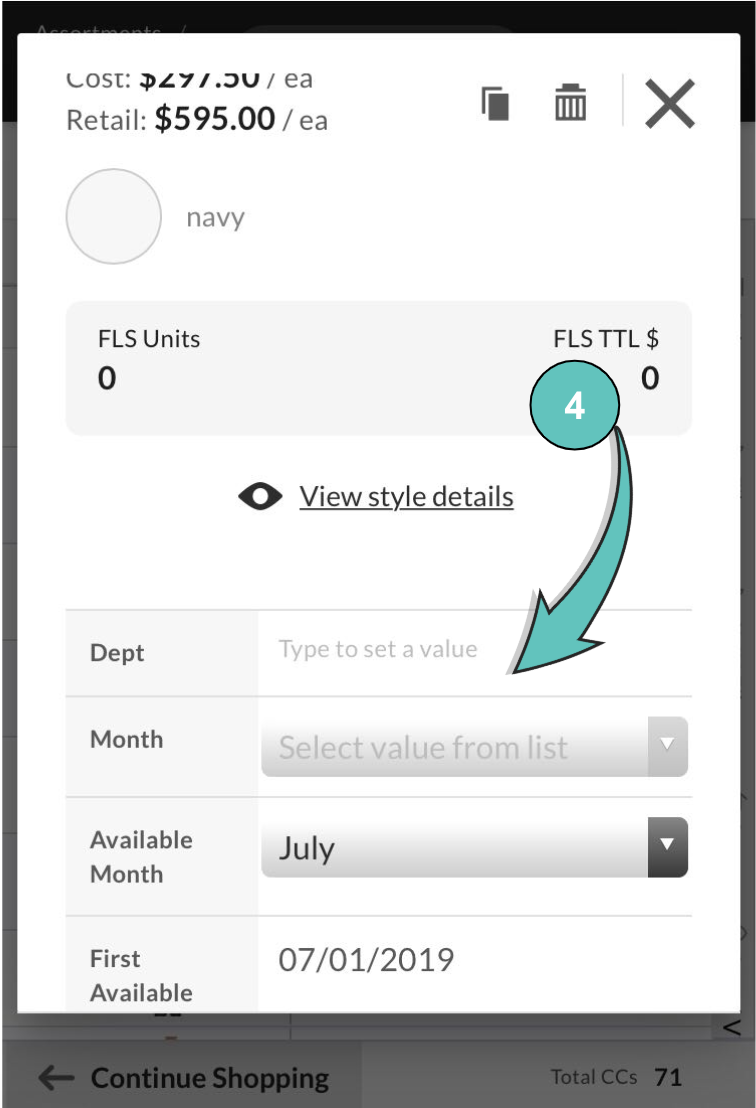
Step 3: To add an image from your device, scroll down and select the '+' sign. This will prompt you to select from either an image from your Photo Library, or to take a photo using your camera. To edit the data, select the field you'd like to make changes to.
Step 4: To edit the data, select the field you'd like to make changes to.
Please contact nordstrom@nuorder.com with any questions.
Comments
0 comments
Please sign in to leave a comment.